Screenshot or sketch to iPhone app
Turn a screenshot or sketch into an iPhone app
Borel turns a screenshot or sketch into a native iPhone app. Attach a screenshot of an app you like, a photo of a drawing on paper or a mockup, and say what each screen does. Borel writes it in Swift with SwiftUI. You try it on a live iPhone in your browser, and Borel Companion, on Pro, puts it on your own iPhone.
Updated
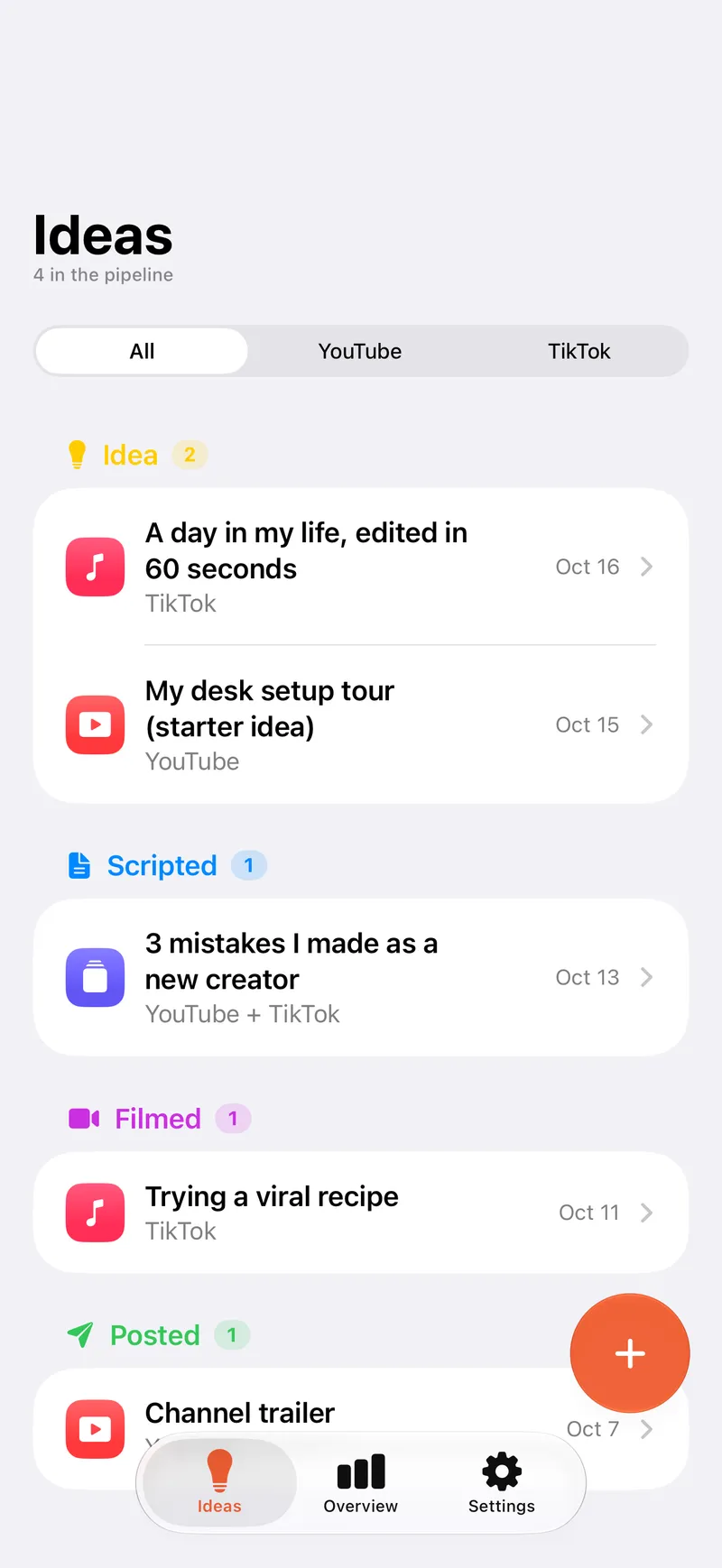
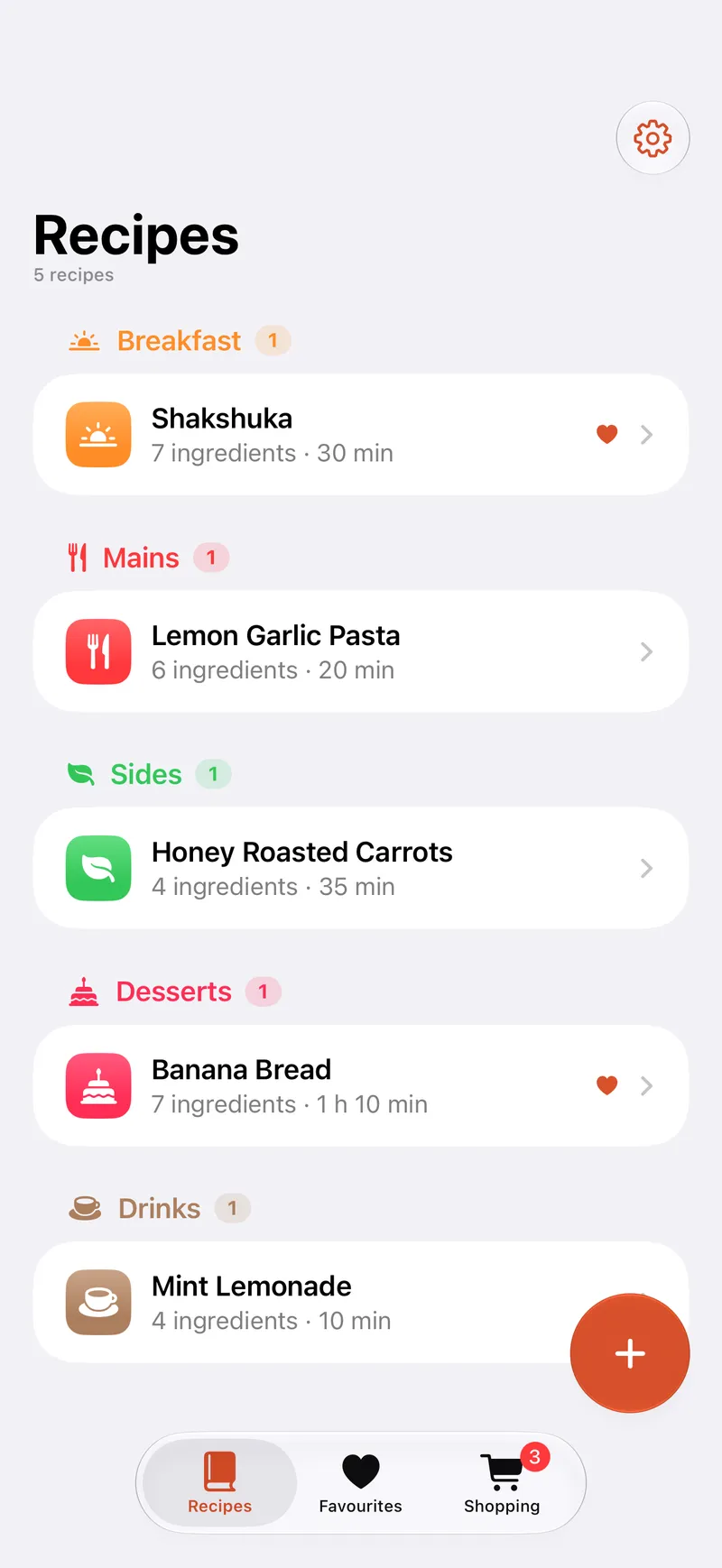
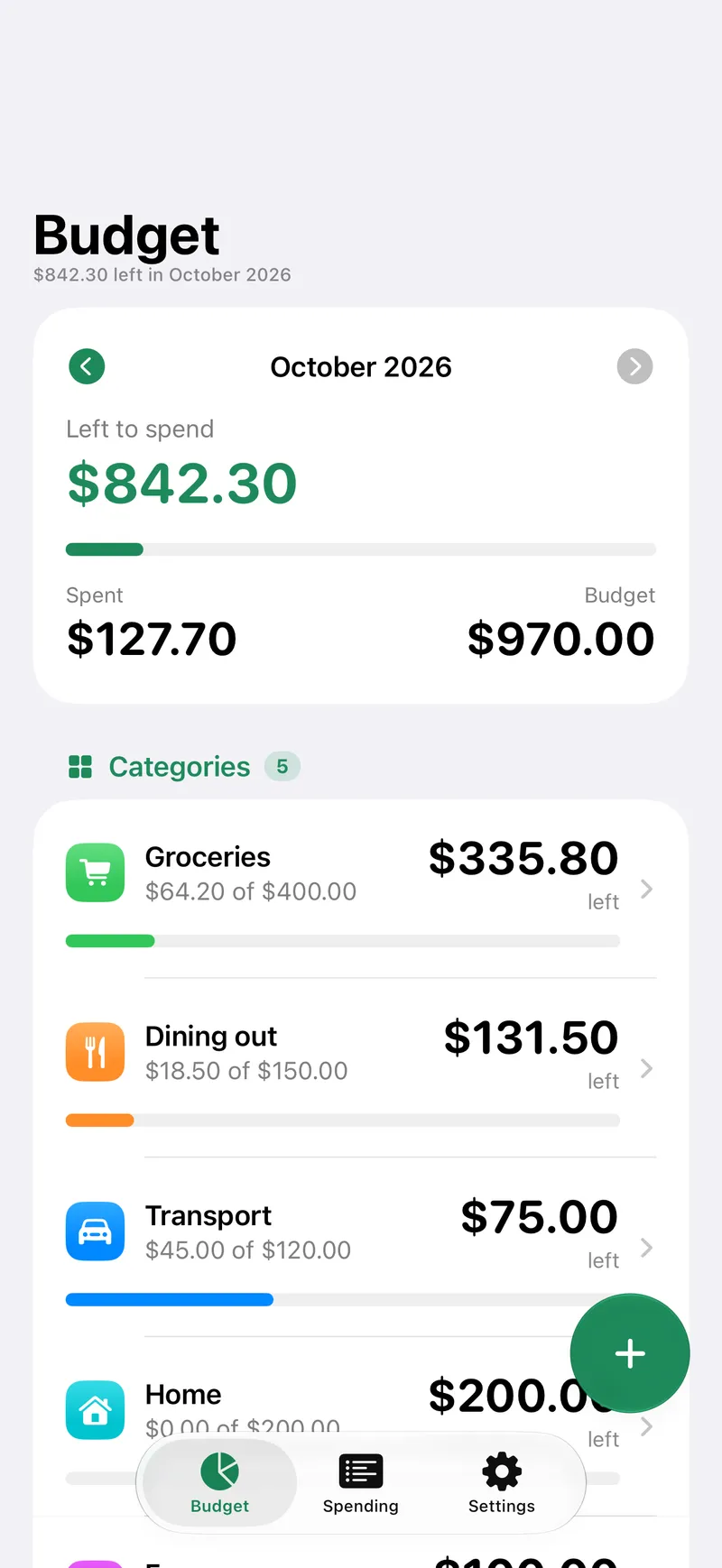
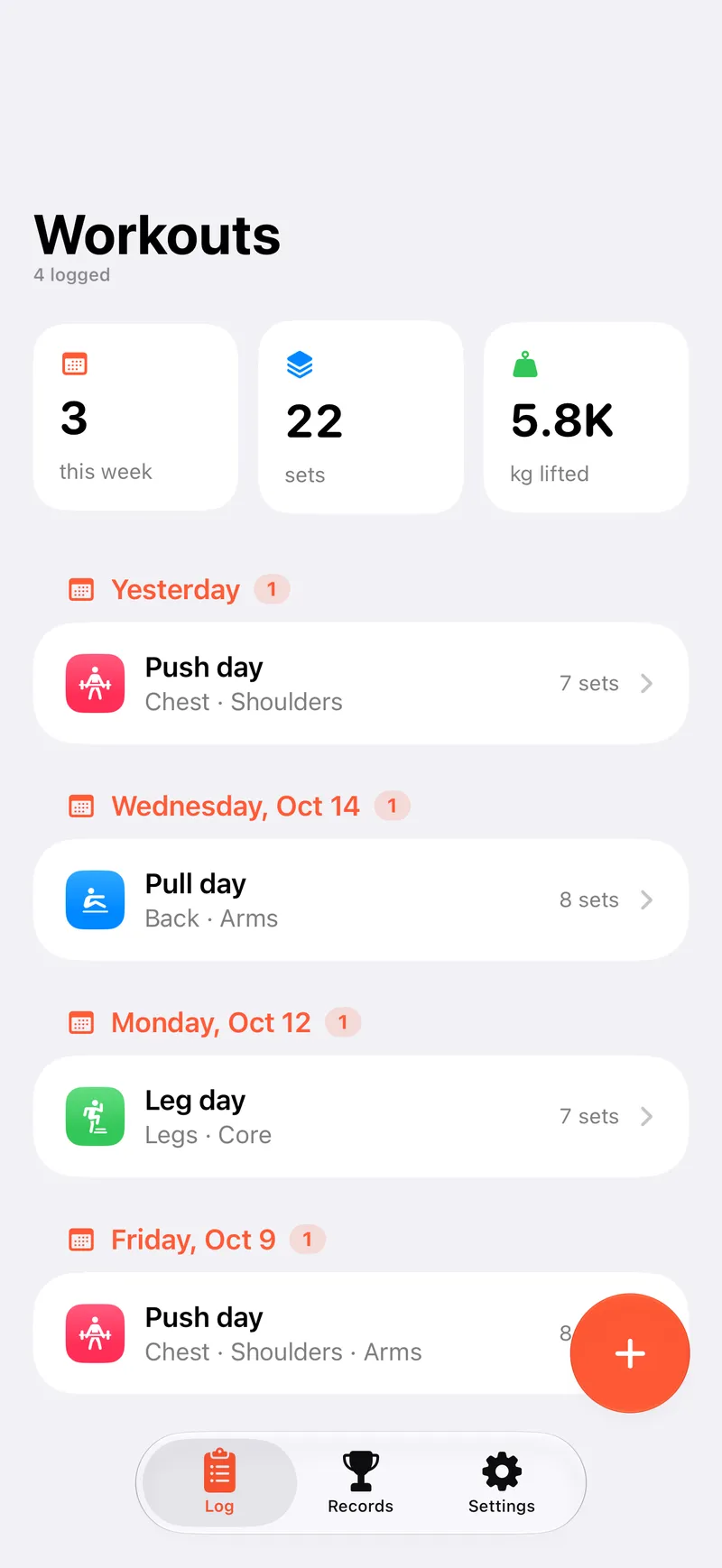
Native apps built by Borel, in the iOS Simulator.
Screenshot or sketch
What does a screenshot or sketch show?
A screenshot is an exact copy of one screen: where everything sits, its colours, its words and its icons. On an iPhone with Face ID you take one by pressing the side button and the volume up button at the same time; on an Android phone it is usually Power and Volume down.
A sketch says less, and that is fine. Boxes for pictures, lines for text and an arrow from one screen to the next already show what you want people to see. A mockup from a drawing app sits between the two: as neat as a screenshot, of an app that doesn't exist yet.
The iPhone question
Why isn't a picture of an app an app yet?
A picture holds one moment. It doesn't say what a button does, where a tap leads, or what the app should remember tomorrow. You add those in a sentence or two, and they become the parts of the app that work.
An iPhone app is code: Swift, compiled with Xcode, Apple's tool for making apps, which runs on a Mac. Borel does that part on its own Mac. It writes each screen in SwiftUI, Apple's interface framework, builds it, and shows you the app running, so you never open Xcode yourself.
Apple's rule
Why a rebuild beats a wrapper
Apple reviews every app before it reaches the App Store, and a website in an app's frame is what its guideline 4.2 is about.
“Your app should include features, content, and UI that elevate it beyond a repackaged website. If your app is not particularly useful, unique, or “app-like,” it doesn’t belong on the App Store.”
Borel doesn't put your picture inside an app's frame. It writes the app in Swift with SwiftUI, so the buttons you drew are real buttons and the controls are the iPhone's own.
Step by step
How to turn your screenshot or sketch into an iPhone app
- 1
Take the picture
Screenshot the screens you want, or photograph your sketch straight on, in good light. Borel takes up to 4 pictures in a message, so begin with the screens that matter most.
- 2
Attach it and say what it's for
Send the prompt below with your pictures. A screenshot on its own works too: Borel then builds the app the picture shows. A sentence on what each button does gets you closer the first time.
- 3
The picture becomes SwiftUI
Borel reads the layout, colours and words in each picture and writes native screens with the iPhone's own controls, then compiles them with Xcode on its Mac.
- 4
Try it, then keep it on your iPhone
Tap through it on a live iPhone in your browser, free, and ask for changes in plain words. When it feels right, Borel Companion, on Pro, puts it on your own iPhone, signed with your Apple ID.
- 5
Publish it, when you want to
With Pro and Apple's Developer Program, Borel signs the app and uploads it to App Store Connect. If it began as a screenshot of another app, make the name, icon and look your own before it goes to the App Store.
Just for you? Skip step 5: personal apps need no App Store.
Your first message
A prompt to start from
Attach your pictures, fill in the brackets, and send it as your first message.
Build an iPhone app from the attached pictures. They are [a screenshot of an app I use / my sketch on paper / a mockup] of these screens: [name each one and what it does]. Keep the layout, colours and words, and use the iPhone's own controls. When someone taps [button], show [screen]. The app should save [what you add].
Moving over
What moves over, and what is made new
Borel works from what the pictures show and the words you write. Anything a picture can't show, such as where a tap leads, you say in the chat.
| In your screenshot or sketch | In the iPhone app |
|---|---|
| Layout of each screen | Moves over. Rebuilt from the picture as a SwiftUI screen. |
| Colours, words and icons | Moves over. Read from the picture. On a sketch, write the labels clearly. |
| What each tap does | Made new. No picture shows it. Say where each button leads. |
| Buttons, lists and menus | Made new. The iPhone's own controls, styled to look like your picture. |
| What the app remembers | Made new. A picture never had it. Say what the app should save, and Borel builds that in. |
| The picture itself | Stays. Yours. An app in a screenshot is never opened or changed. |
Frequently asked questions
Yes. A screenshot on its own is a valid first message, and Borel builds the app it shows. A line on what each screen does and what the app saves brings the first version closer to what you had in mind.
Up to 4 pictures in one message. Start with the screens that matter most, then send the rest in later messages, with a word on where each one fits.
Yes. Draw with a dark pen, take the photo straight on in good light, and write labels in words. Borel reads PNG, JPEG, GIF and WebP pictures. If your iPhone saves photos as HEIC and the picture won't attach, open Settings, then Camera, then Formats, and tap Most Compatible: new photos are saved as JPEG.
For an app that lives only on your own iPhone, a screenshot is a good way to show what you want. Before you publish, make it yours: Apple's guideline 4.1 asks you not to copy another app or pass off small changes to its name or design as your own, and not to use another developer's icon, brand or product name.
Close, though not pixel for pixel. It keeps the layout, colours and words, and uses the iPhone's own controls, so buttons, lists and the Back button behave the way iPhone apps do. Say what to change in plain words and watch the live iPhone update.
No. Borel builds the app with Xcode on its own Mac and streams the live iPhone to your browser, on Windows too. Borel Companion, which puts the app on your iPhone with Pro, runs on Windows or a Mac.
Make it your own iPhone app
Send a screenshot or sketch, tap through the app on a live iPhone, then keep it on your own iPhone with Pro.