Figma to iPhone app
Turn your Figma design into a real iPhone app
Borel turns a Figma design into a native iPhone app that works. Export your frames as pictures and attach them to a message, say what each screen does, and Borel writes the app in Swift with SwiftUI, with accounts and a database behind the screens you drew. There is no file import: you try the result on a live iOS Simulator and publish it to the App Store.
Updated
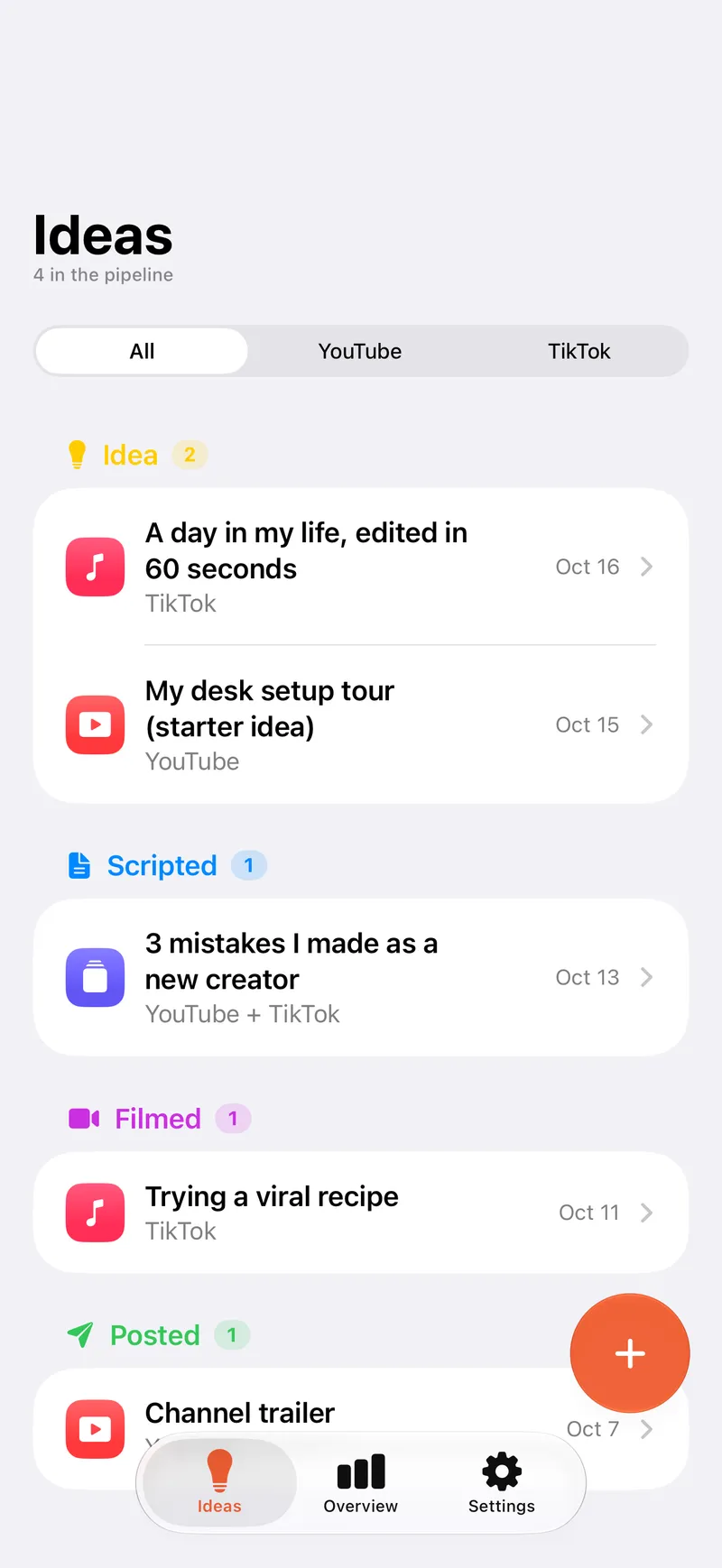
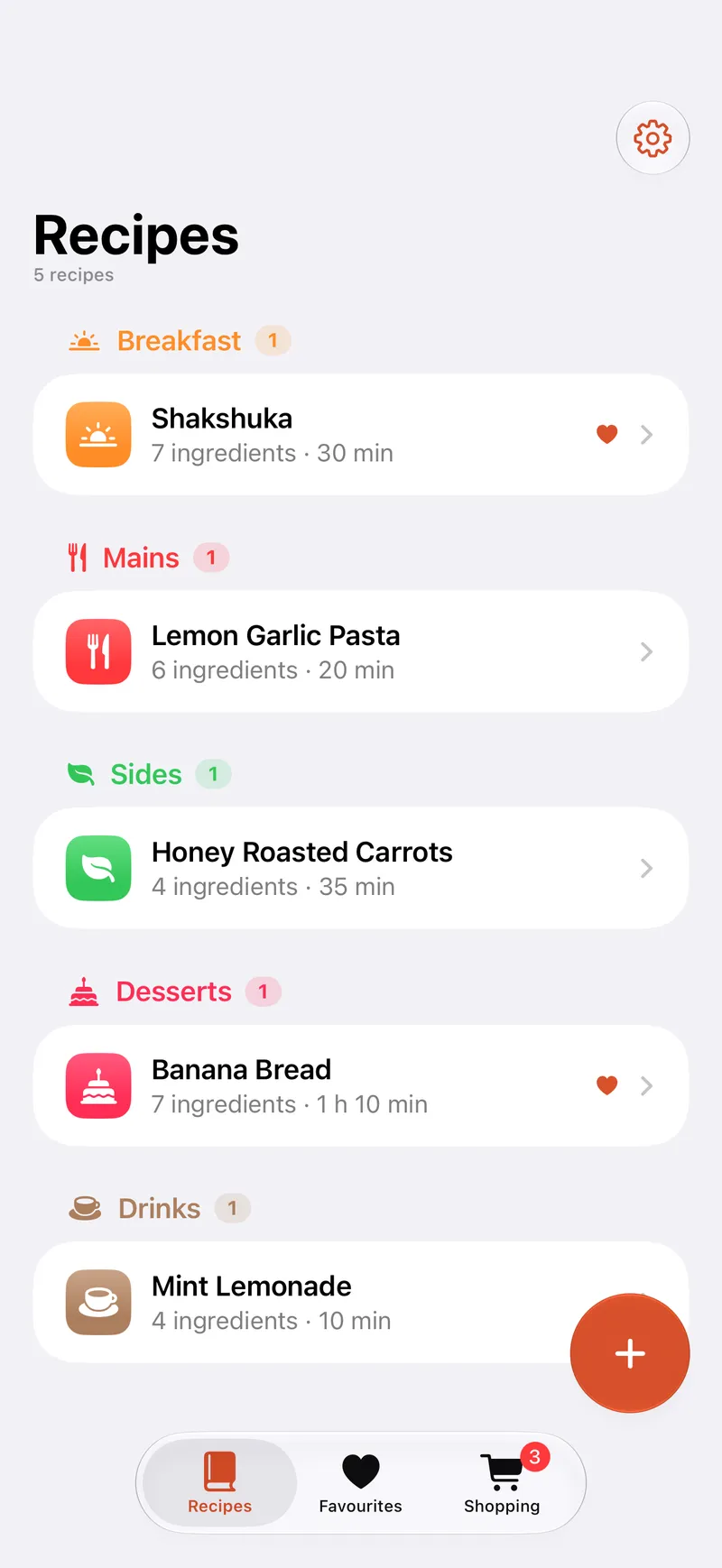
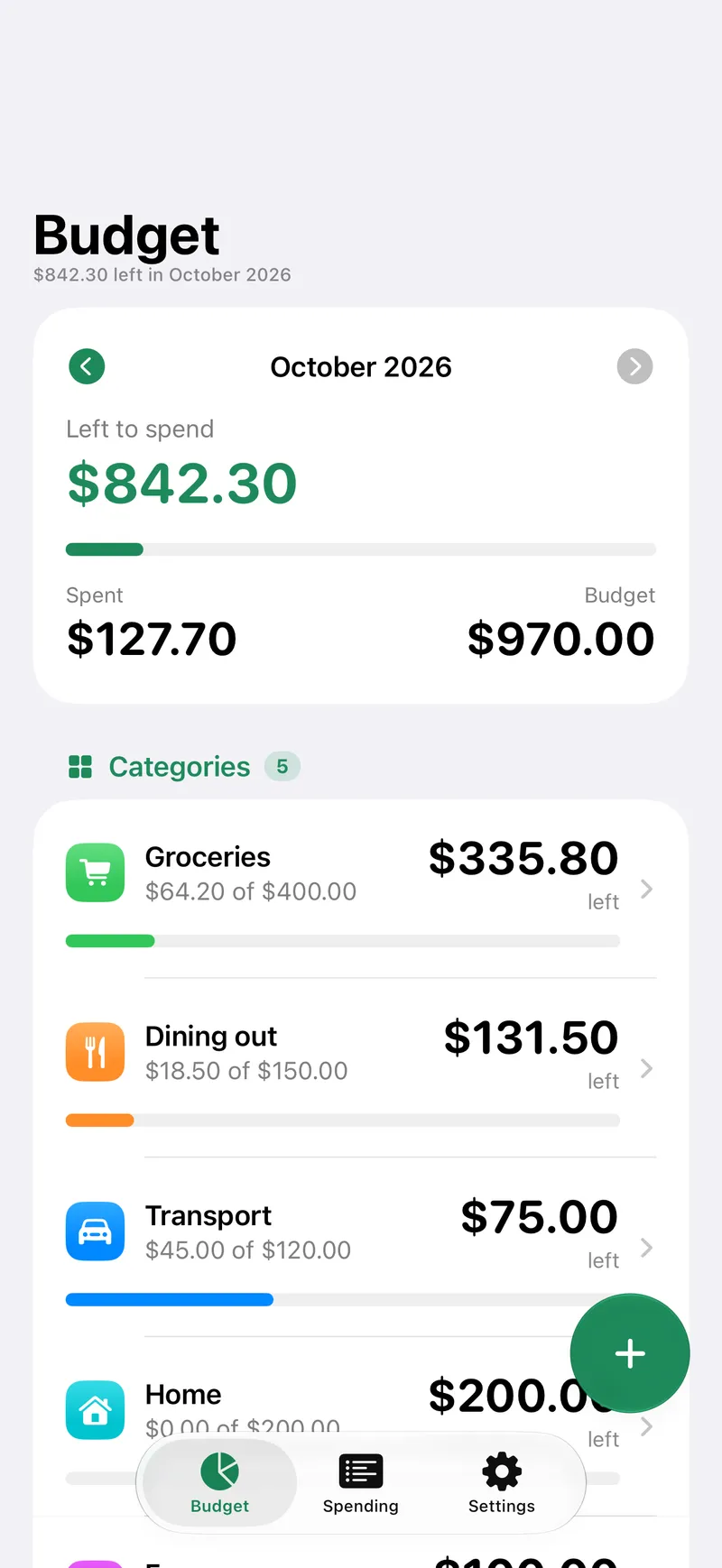
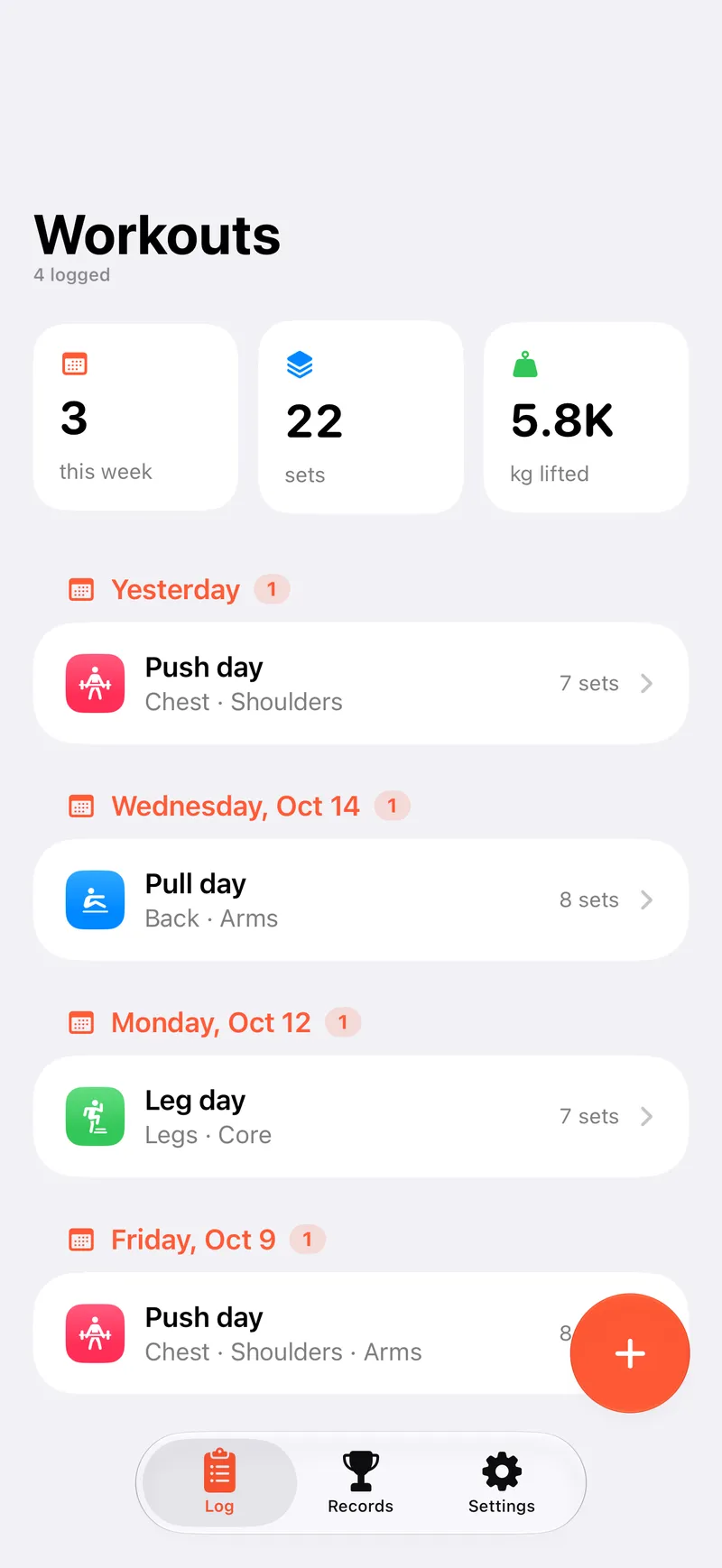
Native apps built by Borel, in the iOS Simulator.
Figma
What does a Figma design give you?
A Figma file holds the design of an app: frames for each screen, and often a prototype. Figma describes prototyping as interactive flows that explore how someone may interact with your designs, for testing interactions with users and presenting to stakeholders.
Figma's mobile app lets you open your files, test prototypes on a phone and mirror frames from your desktop, so the design can already be held in your hand.
The iPhone question
Isn't a Figma prototype already an app?
It looks like one, and that is its purpose: to explore and test a design. What a prototype shows is the flow between frames. There are no accounts behind it and no database, and it isn't a build that Apple can review.
Dev Mode goes a step further for developers: Figma's guide calls it a workspace for inspecting designs, where the inspect panel displays autogenerated code snippets for a layer. Snippets for layers still have to be assembled into an app, compiled and signed by someone. That is the work Borel does, and it does it in SwiftUI, with Xcode on its own Mac.
Apple's rule
Why a rebuild beats a wrapper
Apple reviews every app before it reaches the App Store, and a website in an app's frame is what its guideline 4.2 is about.
“Your app should include features, content, and UI that elevate it beyond a repackaged website. If your app is not particularly useful, unique, or “app-like,” it doesn’t belong on the App Store.”
Borel never wraps your Figma design. It writes a separate app in Swift with SwiftUI, Apple’s own language and interface framework, so the screens, scrolling and controls are the iPhone’s.
Step by step
How to turn your Figma design into an iPhone app
- 1
Export your key frames
In Figma, export the main screens as PNG. Borel takes up to 4 pictures in a message, so start with the screens that define the app.
- 2
Attach them and explain
Send the prompt below with the pictures. Say what each screen does, what gets saved and who signs in. A live site, if you have one, gives Borel your logo and wording.
- 3
The design becomes SwiftUI
Borel studies the frames for layout, colour and type, and writes each one as a native screen, with navigation between them and data that persists.
- 4
Compare it with the prototype
Put your Figma prototype beside the iOS Simulator in your browser, free, and ask for changes until they match. Borel Companion, on Pro, installs the app on your iPhone.
- 5
Ship what you designed
Once you're on Pro and in Apple's Developer Program, Borel compiles the app, signs it and uploads it to App Store Connect. No handoff to a developer is needed.
Just for you? Skip step 5: personal apps need no App Store.
Your first message
A prompt to start from
Put your address where it says, fill in the brackets, and send it as your first message.
Build a native iPhone app from my Figma design. The attached pictures are these screens: [name each one and what it does]. Match the layout, colours and type. People make an account with email, and [what they create] is saved. Our website, for the logo and wording, is <your address>.
Moving over
What moves over, and what is made new
Borel works from what your app shows, the screenshots you add and the words you write. It doesn't copy code or accounts out of another platform.
| In your Figma design | In the iPhone app |
|---|---|
| Layout of each frame | Moves over. Rebuilt from the exported pictures as SwiftUI screens. |
| Colours and type | Moves over. Read from the pictures; fonts are matched to iPhone type. |
| Copy and labels | Moves over. Taken from the frames, and from your site if you give its address. |
| Prototype connections | Made new. Not read from the file. Say which screen leads where, and Borel writes real navigation. |
| Components and variables | Made new. Not imported. The app uses SwiftUI's own controls, styled to your design. |
| Everything behind the screens | Made new. Accounts, tables and saved data, which a design file never had. |
| The Figma file | Stays. Yours to keep designing in. |
Frequently asked questions
No. Borel doesn't sign in to Figma, open design files or use a Figma plugin. It works from pictures you attach and from public web pages, so export your frames as images and send those.
Up to 4 pictures in one message. For a larger design, send the core screens first, then add the rest in later messages, a few at a time.
It follows your layout, colours and type, and uses the iPhone's own controls and navigation. Where the two differ, say which matters and ask for the change in plain words.
Not in Borel, which doesn't import code. Borel writes the whole SwiftUI project itself, and you can download it with an XcodeGen project.yml to open in Xcode.
No. You describe behaviour the way you'd brief a developer, and watch it in the simulator. The Swift is there to download if an engineer joins later.
Send Borel your frames
See the app you designed running on a live iPhone.