No App Store needed
Install your own app on iPhone without the App Store
You can put your own app on your iPhone without the App Store. Build it in Borel, then install it with Borel Companion, a free app for Windows and Mac, and a free Apple ID. Plug in your iPhone once; after that, each new version arrives over Wi-Fi, and Companion renews the app every 7 days while it runs.
Updated
Your PC
You describe the app in your browser, try it and ask for changes.
- Build succeeded
Borel's Mac
Xcode compiles the Swift code and the iOS Simulator runs it.
- 9:41
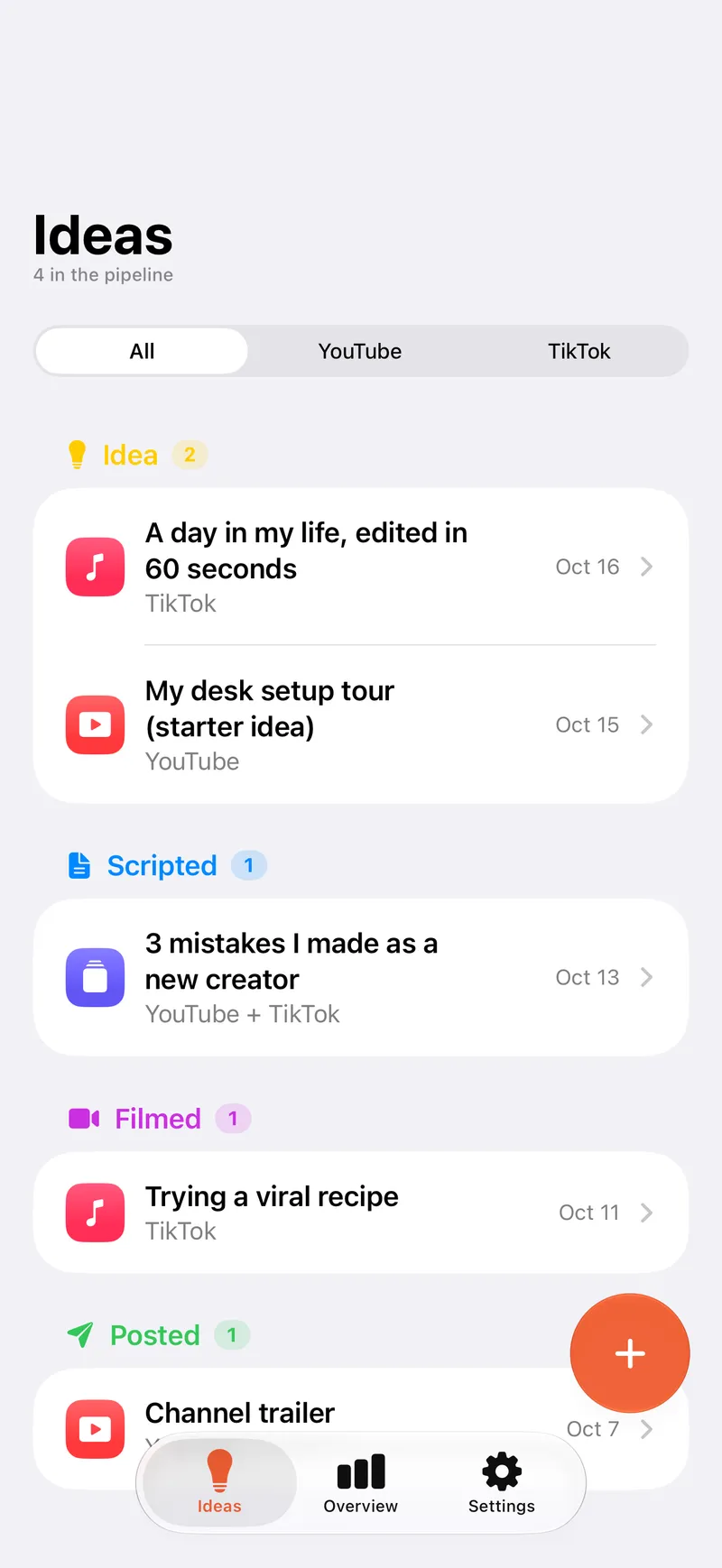
An app Borel built, on an iPhone Your iPhone
Borel Companion installs it with your Apple ID.
How it works
Three steps to your home screen
- 1
Build your app in Borel
Describe it in your browser. Borel writes it in Swift, builds it with Xcode and opens it in the iOS Simulator so you can try it first.
- 2
Set up Borel Companion
Download it for Windows or Mac and sign in with your Apple ID. Your password stays on your computer.
- 3
Plug in once, then Wi-Fi
Unlock your iPhone, tap Trust and turn on Developer Mode. The first install takes the cable; later versions come over Wi-Fi.
Your own iPhone
Can you install an app on iPhone without the App Store?
Yes. Apple lets you install an app you made on your own iPhone, signed with your own Apple ID, with no App Store and no TestFlight. Developers do it every day from Xcode on a Mac. Borel Companion does the same signing and installing for the apps you build in Borel, from a Windows PC or a Mac, with no Xcode on your computer.
It's made for your own apps on your own iPhone. What lands on your home screen is a real native app: it opens like any other, keeps its data on the phone, and uses the camera, Face ID, location and the rest the way an App Store app does.
Before you start
What do you need to install it?
Less than you might expect. There's no Apple software to install on Windows: Windows Update adds the iPhone's driver by itself, and Companion talks to the iPhone directly.
| You need | Details |
|---|---|
| A computer | Windows 10 or 11, or a Mac |
| Borel Companion | Free, on every Borel plan |
| An Apple ID | The free one you already have |
| Your iPhone | With Developer Mode on, set once in Settings |
| A cable | For the first install only |
| Wi-Fi | Your iPhone and computer on the same network, for every later version |
Step by step
How do I install it, step by step?
In the Borel workspace, open Test on your iPhone. The first time, it walks you through downloading Borel Companion and signing in with your Apple ID.
Plug your iPhone into your computer and unlock it. Tap Trust when the iPhone asks, then turn on Developer Mode in Settings, under Privacy & Security, and let the iPhone restart. Companion signs the app with your Apple ID and installs it. The first time takes about 5 minutes.
Once the first install is done, the cable can go. From then on, Test on your iPhone is one button, Download this app to your iPhone, and each new version goes over Wi-Fi. The full walkthrough for Windows is in the guide to installing your own iOS app from Windows.
Week after week
How long does the app keep opening?
For as long as you keep Borel Companion running. Apple signs apps installed with a free Apple ID for 7 days at a time. Companion signs your apps again before then, by itself, while it's open on your computer, so they keep opening. It can start with your computer and wait in the tray on Windows or the menu bar on a Mac.
A free Apple ID holds up to 3 of these apps on your iPhone at a time, which is plenty for the apps you use yourself. When you want anyone to be able to download your app, you can publish it to the App Store from the same project.
Windows and Mac
Does it work from Windows as well as a Mac?
Yes. Borel runs in your browser, and the part that needs a Mac, compiling with Xcode, happens on Borel's own Mac. Companion is the only thing you install, and it's made for both Windows 10 and 11 and macOS. iPhone apps on Windows tells the whole Windows story, and make an iPhone app just for yourself starts from the idea.
Choose Borel if…
- You want your own app on your iPhone today, with no wait for App Review.
- You're on Windows and don't want iTunes or a Mac.
- You'd like each new version to arrive over Wi-Fi, without a cable.
- You want Companion to keep your apps signed for you.
- You may publish to the App Store later, from the same project.
Frequently asked questions
Yes, an app you made yourself. Build it in Borel, and Borel Companion installs it on your iPhone with your Apple ID, from Windows or a Mac.
No. A free Apple ID installs your own apps on your own iPhone. The paid Apple Developer Program, $99 a year, is for publishing to the App Store.
No. Borel Companion works on Windows 10 and 11 without iTunes or the Apple Devices app.
Apple asks for it before an iPhone runs apps that come from outside the App Store. You turn it on once in Settings, under Privacy & Security, and the iPhone restarts.
Up to 3 at a time with a free Apple ID. Borel Companion signs them again every 7 days while it runs.
Only for the first install. After that, your iPhone gets new versions over Wi-Fi when it's on the same network as your computer and Borel Companion is open.
Your password stays on your computer, and Borel Companion uses your Apple ID to sign the apps you build in Borel for your iPhone.
Yes. Every app runs in the iOS Simulator on Borel's Mac, streamed into your browser, free for everyone.
Put your app on your iPhone
Build it in Borel, and let Borel Companion do the installing.